Docker Under the hood
Everyone can drive a car. Almost nobody knows what's inside the engine. This article is the workshop manual from kernel namespaces down to the last union-mount nut and bolt.

Advertisements
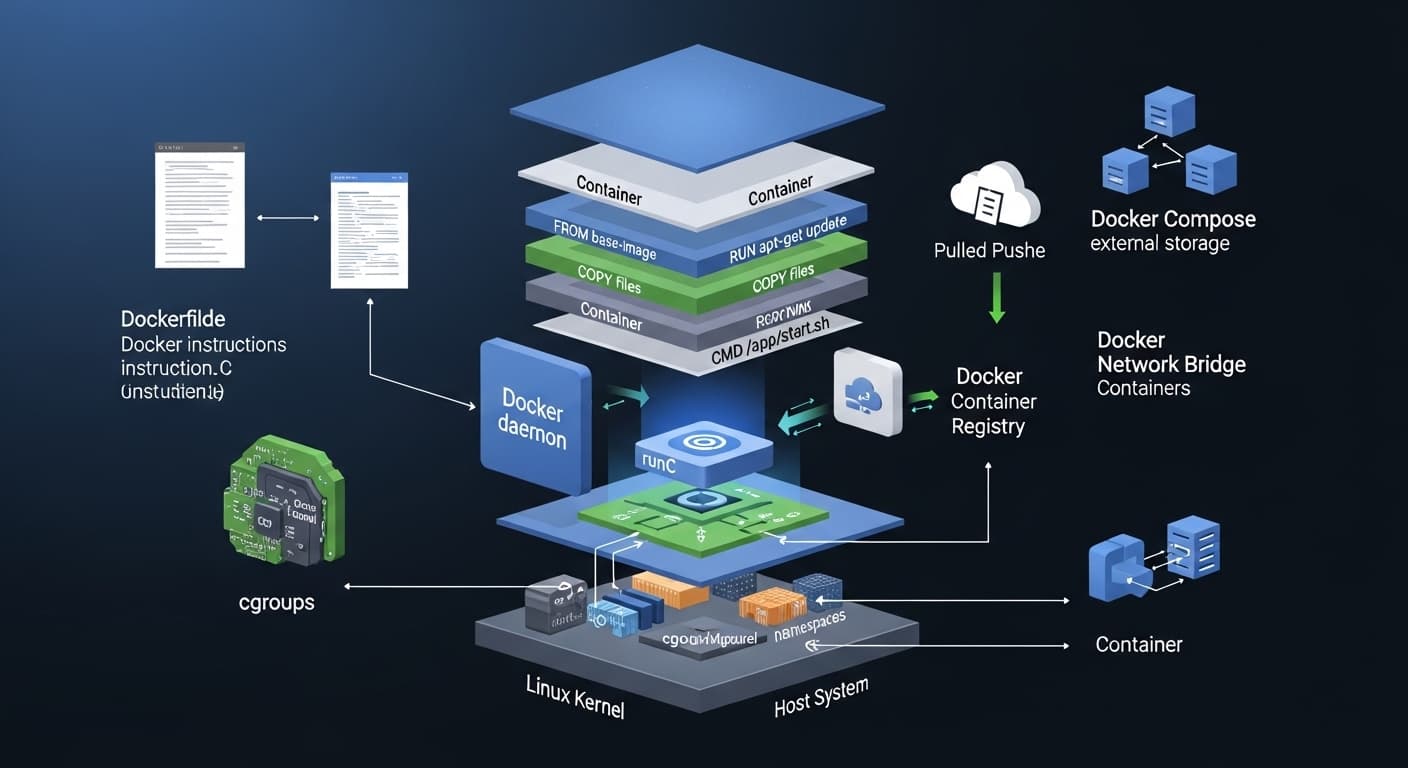
Docker is not a thing. It's an orchestra.
Here is the most important sentence in this entire article: Docker containers are not a kernel feature. There is no "container" syscall. The kernel has never heard of Docker. What the kernel has and has had since 2002 are namespaces and cgroups. Docker is an orchestration layer that uses those two primitives, glues them together with a union filesystem, wraps them in an OCI-compliant image format, and presents the whole thing behind a friendly CLI and daemon.
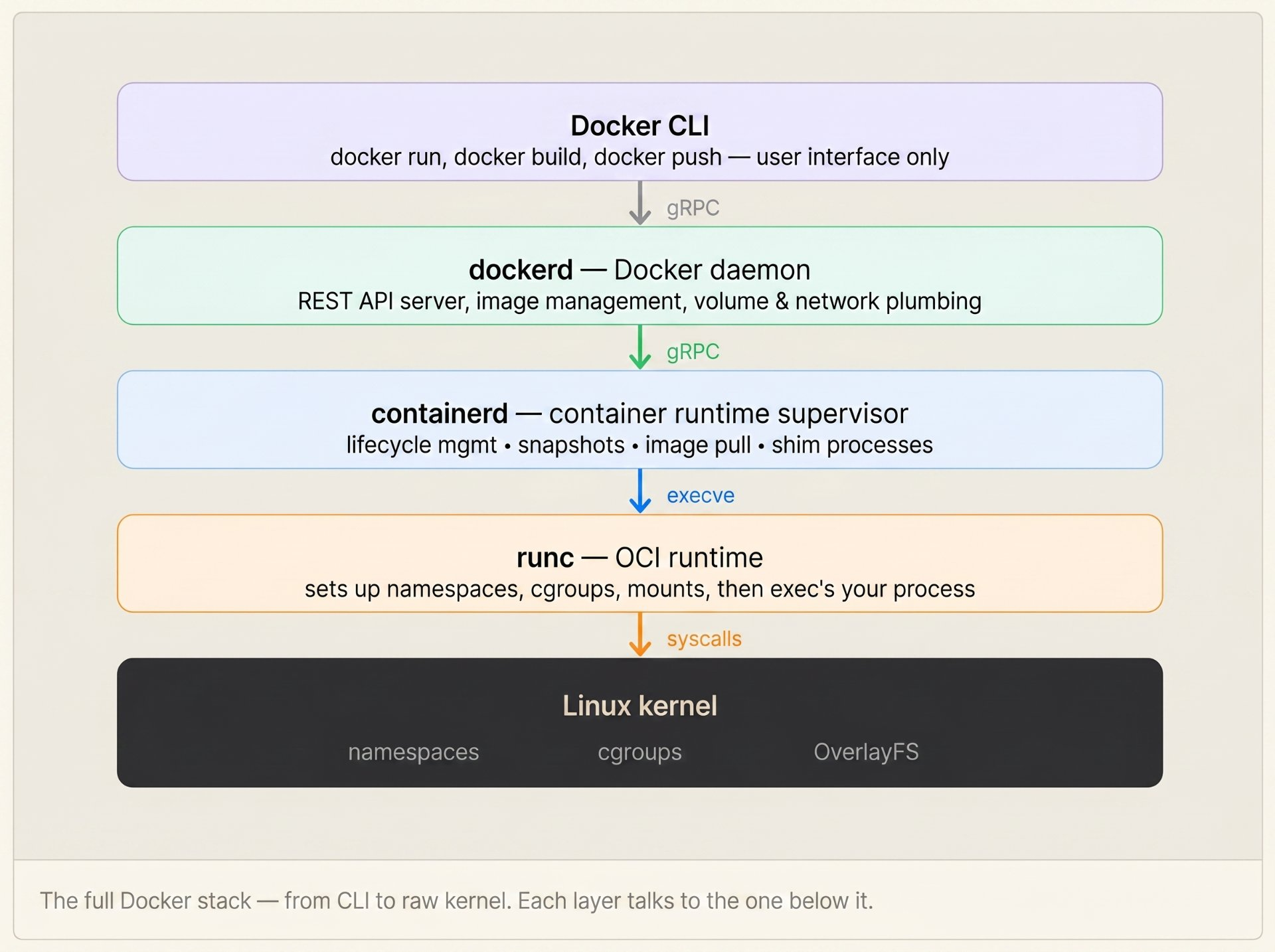
When you run docker run ubuntu bash, at least six distinct subsystems fire in sequence: the Docker CLI, the Docker daemon, containerd, runc, the kernel namespace machinery, and OverlayFS. Let's disassemble each one.
The car analogy
Docker is the dashboard and ignition key. containerd is the engine control unit (ECU). runc is the actual engine block. Namespaces are the chassis the structural frame that keeps things separate. cgroups are the governor, the device that limits how much fuel any one part of the engine can consume. OverlayFS is the bodywork, all the panels and paint sitting on the frame.
Fun fact: You can create a "container" without Docker at all. A single bash command
unshare --pid --net --mount --fork bashcreates an isolated process using raw Linux namespaces. Docker simply automates and secures what you could do manually with kernel syscalls.
Linux namespaces — the walls of the container
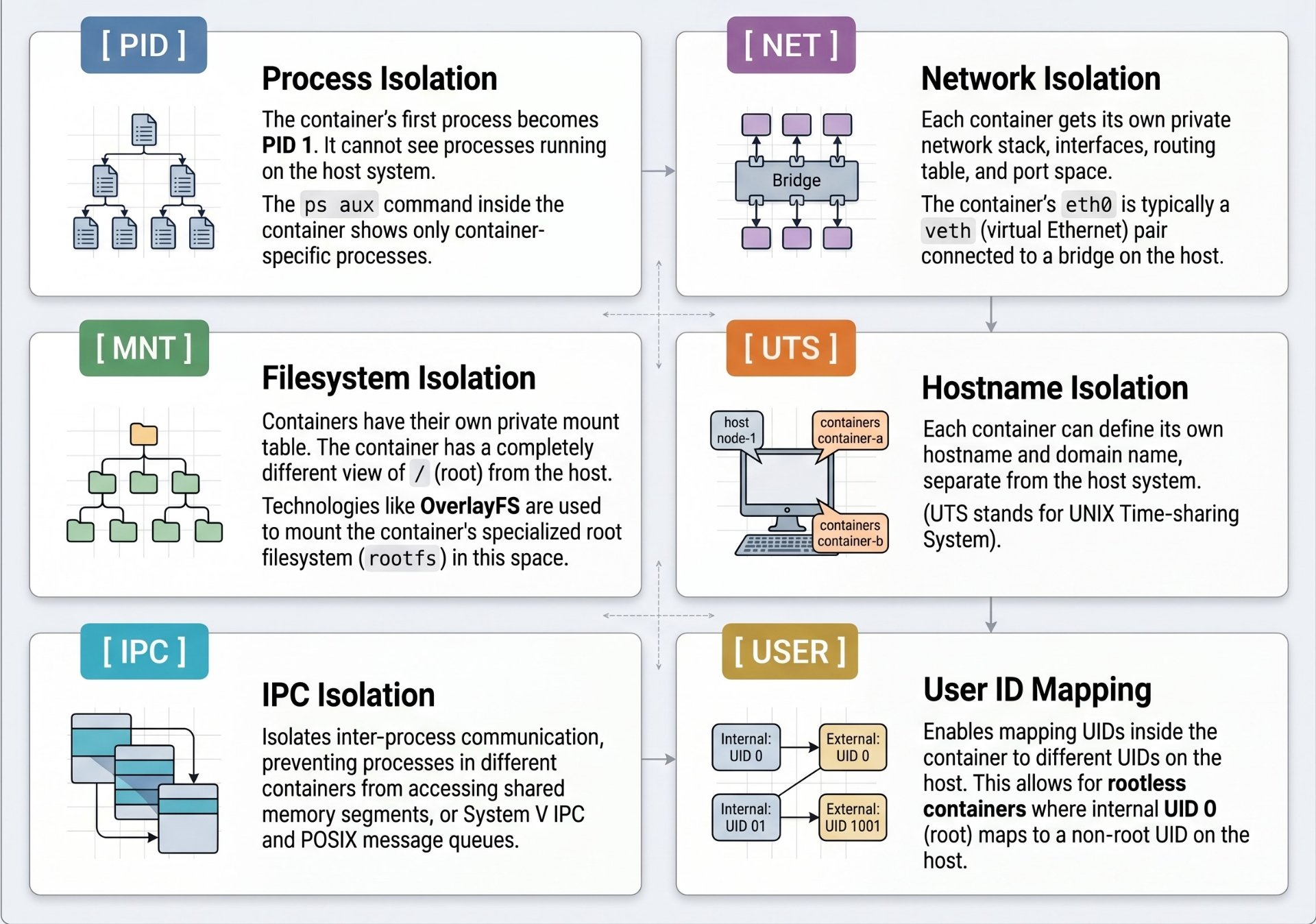
A namespace is a kernel mechanism that wraps a global system resource so that a process inside the namespace sees its own private copy of that resource, while processes outside see a completely different view. This is how a container "thinks" it has its own hostname, its own process list, its own network interface, when in reality it's sharing the same kernel as everything else on the host.
There are currently eight namespace types in the Linux kernel. Docker uses six of them. Let's examine every one:
How namespaces are created — the raw syscall
Namespaces are created by three syscalls:
clone()(create a new process in a new namespace),unshare()(move the current process to a new namespace), andsetns()(join an existing namespace). runc callsclone()with a bitmask of flags likeCLONE_NEWPID | CLONE_NEWNET | CLONE_NEWNSto set up all the walls in one shot.
# This IS a container — just without Docker's abstractions
# unshare creates new namespaces for the child process
sudo unshare \
  --pid \          # new PID namespace (bash becomes PID 1)
  --net \          # new network namespace (no interfaces)
  --mount \        # new mount namespace (own filesystem view)
  --uts \          # new hostname namespace
  --ipc \          # new IPC namespace
  --fork \         # fork so PID 1 assignment works correctly
  --mount-proc \   # remount /proc for the new PID namespace
  /bin/bash

# Inside this shell, you'll see:
$ hostname     # whatever the host hostname still is
$ ps aux       # only this bash process and ps itself — PID 1 and 2
$ ip link      # only lo — no eth0, no host network

# This is exactly what runc does — but for a complete rootfs,
# with cgroups layered on top, and an OverlayFS rootfs beneath.
The /proc filesystem as the namespace window
Every namespace has a corresponding entry in /proc/[pid]/ns/. These are symbolic links to the namespace "inodes." As long as something holds a file descriptor open to one of these links, the namespace persists even if every process inside it has exited. This is how docker pause keeps namespaces alive with no running process.
# Find the container's main PID on the host
CPID=$(docker inspect --format '{{.State.Pid}}' mycontainer)

# List its namespace inodes
ls -la /proc/$CPID/ns/

# Output:
lrwxrwxrwx cgroup -> cgroup:[4026531835]
lrwxrwxrwx ipc    -> ipc:[4026532508]     # ← different from host
lrwxrwxrwx mnt    -> mnt:[4026532506]     # ← different from host
lrwxrwxrwx net    -> net:[4026532511]     # ← different from host
lrwxrwxrwx pid    -> pid:[4026532509]     # ← different from host
lrwxrwxrwx uts    -> uts:[4026532507]     # ← different from host

# Enter the container's network namespace without docker exec
sudo nsenter --target $CPID --net ip addrcgroups — the resource governor
Namespaces give containers isolation. cgroups (control groups) give them limits. Without cgroups, a container could consume 100% of the host's CPU, exhaust all memory, and bring down every other container including the system itself. cgroups are the governor that prevents any one tenant from hogging the whole engine.
The engine governor analogy
A mechanical governor on a diesel engine limits maximum RPM; not by cutting fuel suddenly, but by gradually restricting the throttle as the engine approaches the limit. cgroups do exactly this for compute resources: CPU is throttled, memory is hard-limited with an OOM killer as the emergency shutoff, and I/O bandwidth is metered per device.
cgroups are represented as a virtual filesystem at /sys/fs/cgroup/. Every container gets its own subdirectory under each cgroup controller. When Docker applies a memory limit, it literally writes a number to a file in that directory. The kernel reads it every scheduling cycle.
# Find the container's cgroup path
CGROUP=$(docker inspect --format '{{.Id}}' mycontainer | head -c 12)

# Navigate the cgroup virtual filesystem
ls /sys/fs/cgroup/system.slice/docker-$CGROUP*.scope/

# Read the actual memory limit (in bytes)
cat /sys/fs/cgroup/system.slice/docker-$CGROUP*.scope/memory.max
536870912   # 512 MB — exactly what we set with --memory 512m

# Read current memory usage
cat /sys/fs/cgroup/system.slice/docker-$CGROUP*.scope/memory.current
134217728   # 128 MB currently used

# CPU quota: container gets 150ms of CPU per 100ms period
# = 1.5 CPUs maximum
cat /sys/fs/cgroup/system.slice/docker-$CGROUP*.scope/cpu.max
150000 100000
# Create a cgroup
mkdir /sys/fs/cgroup/mycontainer
# Limit to 256MB memory
echo "268435456" > /sys/fs/cgroup/mycontainer/memory.max
# Limit to 0.5 CPU (50ms out of every 100ms period)
echo "50000 100000" > /sys/fs/cgroup/mycontainer/cpu.max
# Limit to 10 MB/s read on /dev/sda (major:minor weight)
echo "8:0 rbps=10485760" > /sys/fs/cgroup/mycontainer/io.max
# Move a process into this cgroup — now it's constrained
echo $PID > /sys/fs/cgroup/mycontainer/cgroup.procs
# This is literally what runc does after setting up namespaces.
# The "container" is just a process in a namespace + cgroup combo.cgroups v1 vs v2 — what changed
cgroups v1 (pre-2016) had a separate hierarchy per controller, memory had its own tree, CPU had its own tree, and coordinating them was messy. cgroups v2 (unified hierarchy, Linux 4.5+, default in most distros since 2021) has a single tree where each cgroup contains all controllers. Docker 20.10+ uses cgroupsv2 by default when the host kernel supports it. The key v2 additions are: per-process I/O accounting, pressure stall information (PSI), and the
memory.oom.groupknob that OOM-kills the entire cgroup as a unit instead of killing random processes.
Union filesystems — how layers stack
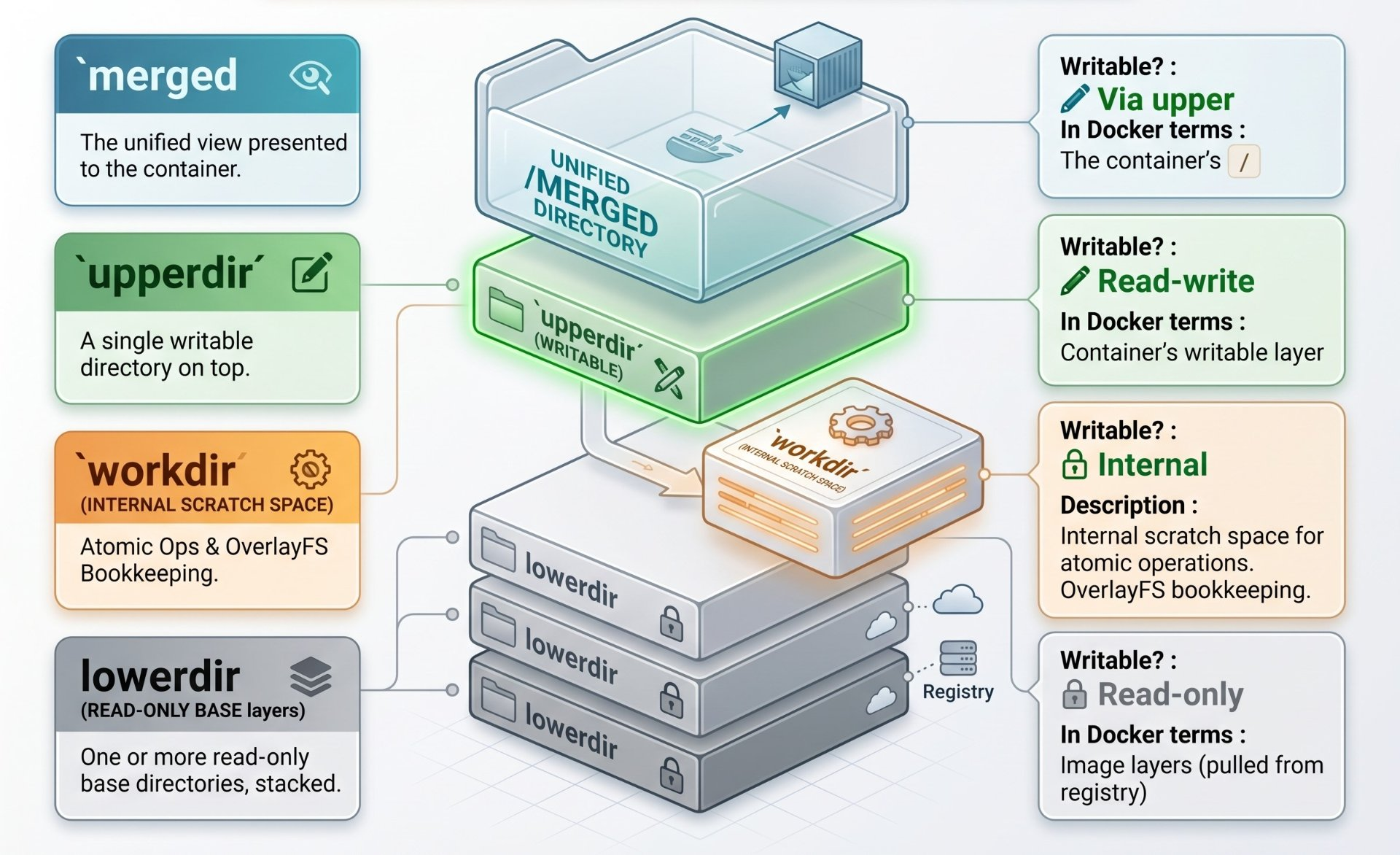
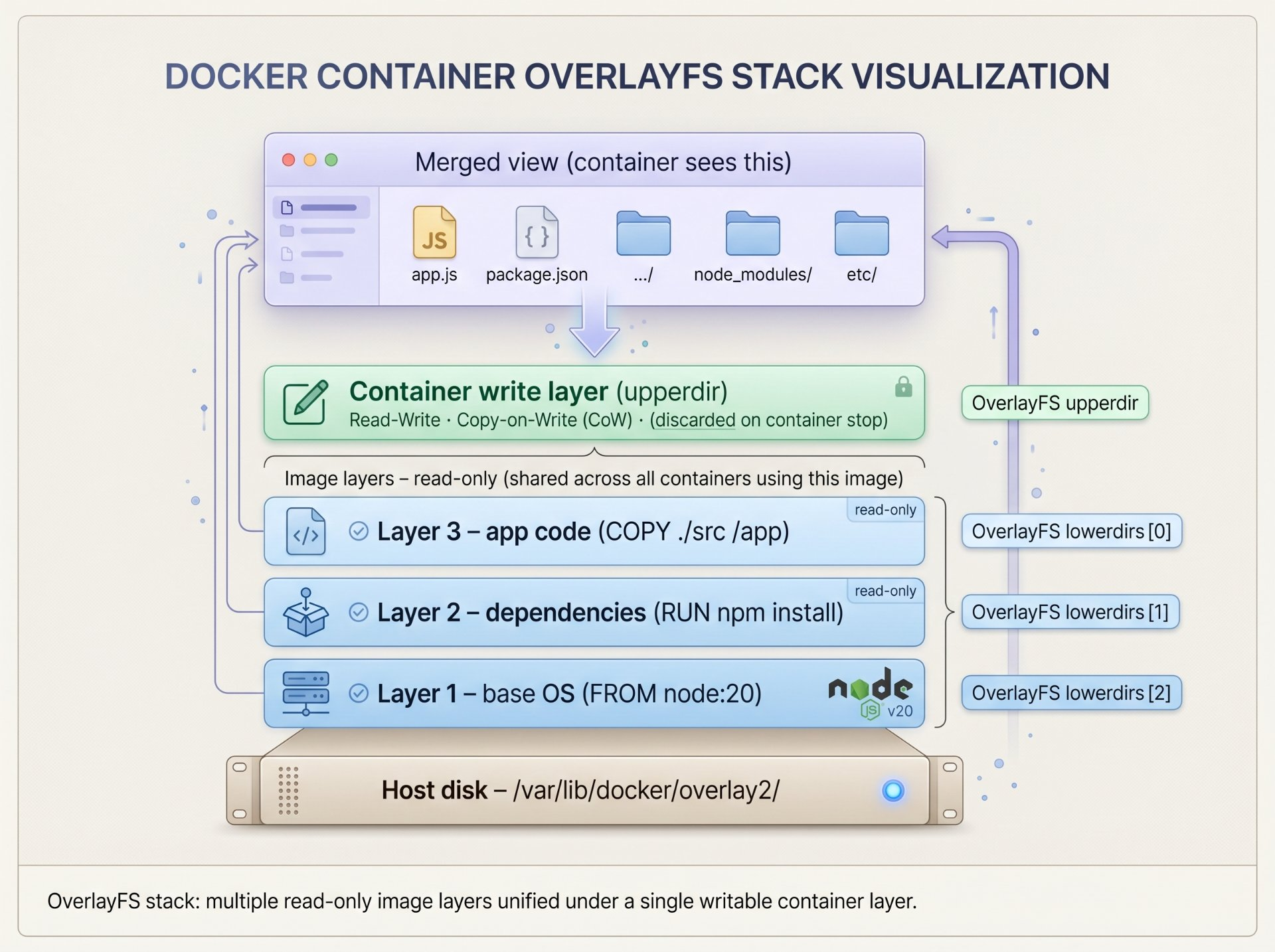
This is the part most engineers find magical. When you pull a Docker image, you don't get a single monolithic disk file. You get a stack of read-only filesystem layers, united by a union mount where multiple directories are merged into a single coherent view. The magic happens in the kernel's OverlayFS driver.
The transparency sheet analogy
Imagine stacking transparent overhead projector sheets. Each sheet has some drawing on it. When you stack them all and look from above, you see a composite image with the top sheet's markings winning wherever there's a conflict. OverlayFS does exactly this with directories. Each image layer is a transparency. The container adds one more a writable sheet on top that captures all your changes without ever touching the read-only sheets underneath.
OverlayFS uses three directory roles:
# Find the container's merged mount
docker inspect mycontainer | grep MergedDir
"MergedDir": "/var/lib/docker/overlay2/abc123.../merged"

# See the actual OverlayFS mount in the host kernel
mount | grep overlay
overlay on /var/lib/docker/overlay2/abc123.../merged type overlay
  (rw,lowerdir=layer3:layer2:layer1,
       upperdir=abc123.../diff,
       workdir=abc123.../work)

# List what's actually in the lower layers (image content)
ls /var/lib/docker/overlay2/

# See what the container has written (only changed/new files)
ls /var/lib/docker/overlay2/abc123.../diff/Copy-on-write (CoW) — how writes work
When a process inside a container writes to a file that exists in a lower (read-only) layer, OverlayFS performs a copy-up: it copies the entire file into the upperdir first, then applies the write there. From the container's perspective, the file was modified in place. From the filesystem's perspective, the original in the lower layer is untouched and a new copy exists in the upper layer. This is Copy-on-Write.
The copy-up penalty is why writing to large files in containers can feel slow the first time a 500MB database file gets fully copied into the upper layer before the first byte is written. This is why databases should always use volumes (mounted directly into the container, bypassing OverlayFS entirely) and not container layers.
runc — the thing that actually starts the container
runc is a small, standalone Go binary. It is the lowest-level piece of the Docker stack. Its one job: read an OCI bundle (a directory with a config.json and a rootfs), and execute the process described in it with all the namespaces, cgroups, mounts, and capabilities configured exactly as specified.
runc does not daemonize. It does not manage images. It does not pull layers. It starts one process in one container and then, by default, exits. It is a spawner.
# Step 1: Get a rootfs (in real life, containerd provides this)
mkdir -p /tmp/mycontainer/rootfs
docker export $(docker create busybox) | tar -C /tmp/mycontainer/rootfs -xf -

# Step 2: Generate a default OCI config.json
cd /tmp/mycontainer
runc spec

# config.json now describes: process, hostname, mounts, linux.namespaces,
# linux.resources (cgroups), capabilities, seccomp, and more

# Step 3: Run the container — runc is all you need
sudo runc run mycontainer-1

# You are now in a container. No Docker daemon. No containerd.
# Just runc + kernel namespaces + OverlayFS rootfs.
/ #
What runc does in order
1. Parse
config.json. 2. Create a new process withclone()with the requested namespace flags. 3. In the child: set up the rootfs mount (OverlayFS pivot_root). 4. Configure cgroups. 5. Drop capabilities and apply seccomp. 6. Set UID/GID. 7.execve()the container's entrypoint. 8. runc's parent process exits. The container process is now PID 1 in its namespace orphaned by design.
OCI spec — the container's constitution
The Open Container Initiative (OCI) defines two specifications that make containers portable across runtimes:
The Image Spec defines how a container image must be structured, a manifest, a config JSON, and content-addressed layer tarballs stored in a registry. Every image you pull from Docker Hub is OCI-compliant. This is why you can use the same image with Docker, Podman, containerd, or cri-o they all speak the same format.
The Runtime Spec defines what config.json must contain and how a runtime must execute it. runc is the reference implementation. Other OCI-compliant runtimes (crun, kata-containers, gVisor/runsc) can be swapped in as drop-in replacements.
{
  "ociVersion": "1.1.0",
  "process": {
    "terminal": false,
    "user": { "uid": 1001, "gid": 1001 },
    "args": ["/usr/bin/node", "server.js"],
    "env": ["PATH=/usr/local/sbin:/usr/local/bin:/usr/sbin:/usr/bin"],
    "cwd": "/app",
    "capabilities": {
      "bounding": ["CAP_NET_BIND_SERVICE"]  // only capability granted
    },
    "rlimits": [{ "type": "RLIMIT_NOFILE", "hard": 1024, "soft": 1024 }]
  },
  "root": { "path": "rootfs", "readonly": false },
  "mounts": [
    { "destination": "/proc", "type": "proc" },
    { "destination": "/tmp", "type": "tmpfs",
      "options": ["nosuid", "strictatime", "mode=1777", "size=65536k"] }
  ],
  "linux": {
    "namespaces": [
      { "type": "pid" },
      { "type": "network" },
      { "type": "mount" },
      { "type": "uts" }
    ],
    "resources": {
      "memory": { "limit": 536870912 },       // 512 MB
      "cpu":    { "quota": 150000, "period": 100000 }  // 1.5 CPUs
    },
    "seccomp": { "defaultAction": "SCMP_ACT_ERRNO", "syscalls": [ ... ] }
  }
}containerd — the runtime supervisor nobody talks about
containerd sits between dockerd and runc. It is a full container runtime that manages the full container lifecycle: image pull, snapshot management (using snapshotters like OverlayFS), container creation, execution, and deletion. The Docker daemon delegates almost everything to containerd via gRPC.
In modern Kubernetes clusters, containerd is the default container runtime the containerd binary is what kubelet talks to, with no Docker daemon involved at all. Docker donated containerd to the CNCF in 2017 precisely to make it a shared infrastructure layer.
The shim process — the key to runc's statelessness
containerd doesn't keep runc alive. Instead, for each container it spawns a
containerd-shimprocess that acts as the container's parent. The shim holds the container's stdio file descriptors, reports its exit code, and prevents the container from becoming an orphan if containerd itself crashes. When runc finishes its work and exits, the shim lives on as the container's actual manager. This is howdocker execanddocker logswork they talk to the shim, not runc.
systemd (PID 1)
└── dockerd
    └── containerd
        ├── containerd-shim-runc-v2   # shim for container A
        │   └── node server.js        # PID 1 INSIDE container A
        │       └── node worker.js
        └── containerd-shim-runc-v2   # shim for container B
            └── nginx: master process # PID 1 INSIDE container B
                └── nginx: worker process

# Note: inside each container, the process thinks it's PID 1
# On the host, they have normal PIDs in the thousandsDocker networking internals — veth pairs & bridges
When you start a container, Docker doesn't use some magic network virtualization technology. It uses a set of Linux networking primitives that have existed for years: virtual ethernet pairs (veth), bridge devices, and iptables rules.
A veth pair is like a patch cable with two ends. One end goes into the container's network namespace (appears as eth0 inside). The other end sits on the host and is connected to a bridge device (by default, docker0). IP packets flow between the container and the host through this virtual cable.
# The docker0 bridge — Docker creates this at startup
ip link show docker0
docker0: <BROADCAST,MULTICAST,UP> mtu 1500
  link/ether 02:42:1a:2b:3c:4d brd ff:ff:ff:ff:ff:ff
  inet 172.17.0.1/16 scope global docker0

# See all veth pairs (one per running container on bridge network)
ip link show type veth
veth3a8b9c@if5: state UP   # host end — connected to docker0

# The iptables rules Docker adds for NAT (port publishing)
iptables -t nat -L DOCKER --line-numbers
1  DNAT tcp -- anywhere anywhere  tcp dpt:8080
   to:172.17.0.2:3000  # container IP:port

# When you do docker run -p 8080:3000:
# 1. Docker creates a veth pair
# 2. Attaches host-end to docker0 bridge
# 3. Puts container-end into container's net namespace
# 4. Assigns 172.17.0.x IP to container-end
# 5. Adds DNAT iptables rule: host:8080 → container:3000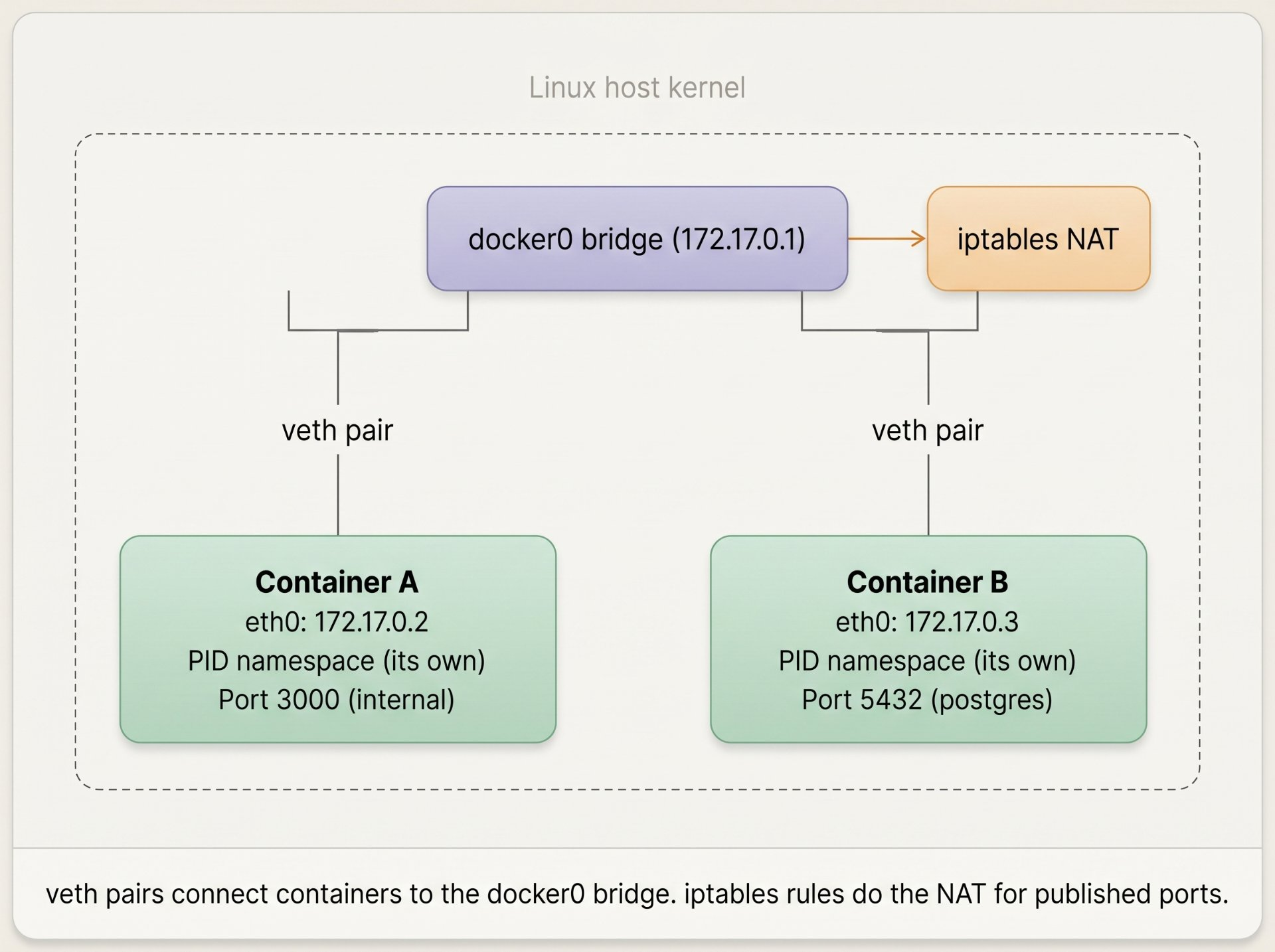
The full lifecycle — from docker run to PID 1
Let's trace exactly what happens when you type docker run -p 8080:3000 --memory 512m myapp:latest — every step, from keypress to running process.
User types: docker run -p 8080:3000 --memory 512m myapp:latest

Step 1 — Docker CLI
  Parses arguments → constructs ContainerCreate gRPC request
  Sends to dockerd on unix:///var/run/docker.sock

Step 2 — dockerd
  Checks image cache (is myapp:latest in /var/lib/docker/image/?)
  If not: delegates pull to containerd (which fetches OCI layers)
  Creates container record in its graph database
  Sets up networking: creates veth pair, assigns IP, adds iptables DNAT rule
  Delegates container start to containerd via gRPC

Step 3 — containerd
  Creates a snapshot (OverlayFS mount: lowerdir=image layers, upperdir=new layer)
  Generates OCI config.json from dockerd's spec
  Spawns containerd-shim-runc-v2 process
  Returns control (container lifecycle now owned by shim)

Step 4 — containerd-shim-runc-v2
  Opens stdio file descriptors (for docker logs / docker attach)
  Calls: runc create + runc start

Step 5 — runc
  Calls clone(CLONE_NEWPID | CLONE_NEWNET | CLONE_NEWNS | CLONE_NEWUTS | CLONE_NEWIPC)
  In child process:
    pivot_root → sets OverlayFS merged as new /
    Mounts /proc, /dev, /sys in new namespaces
    Writes PID to /sys/fs/cgroup/.../cgroup.procs (applies memory/CPU limits)
    Drops capabilities (ALL except those in config.json)
    Loads seccomp filter
    Sets UID/GID to 1001:1001
    execve("/usr/bin/node", ["node", "server.js"])
  runc parent process exits ← runc is done

Step 6 — Your process
  node server.js is now running
  It thinks it is PID 1 on a machine with hostname 'myapp-container'
  It sees only its own files, its own network, its own process list
  It cannot use more than 512 MB of RAM
  It cannot make syscalls blocked by seccomp
The container is alive.Author's Note
Chamath P.
DevOps Engineer
DevOps Engineer writing practical guides on Kubernetes, CI/CD, IaC, and SRE — based on real production experience.
This article was written with AI assistance. All technical claims and code examples have been personally verified before publishing.
Advertisements