OverlayFS Deep Dive
Every Docker image you have ever pulled is made of layers you cannot see, unified by a filesystem you have never consciously interacted with. OverlayFS is the invisible engine beneath every container and understanding it changes how you build, debug, and optimise images forever.

Advertisements
What OverlayFS is?
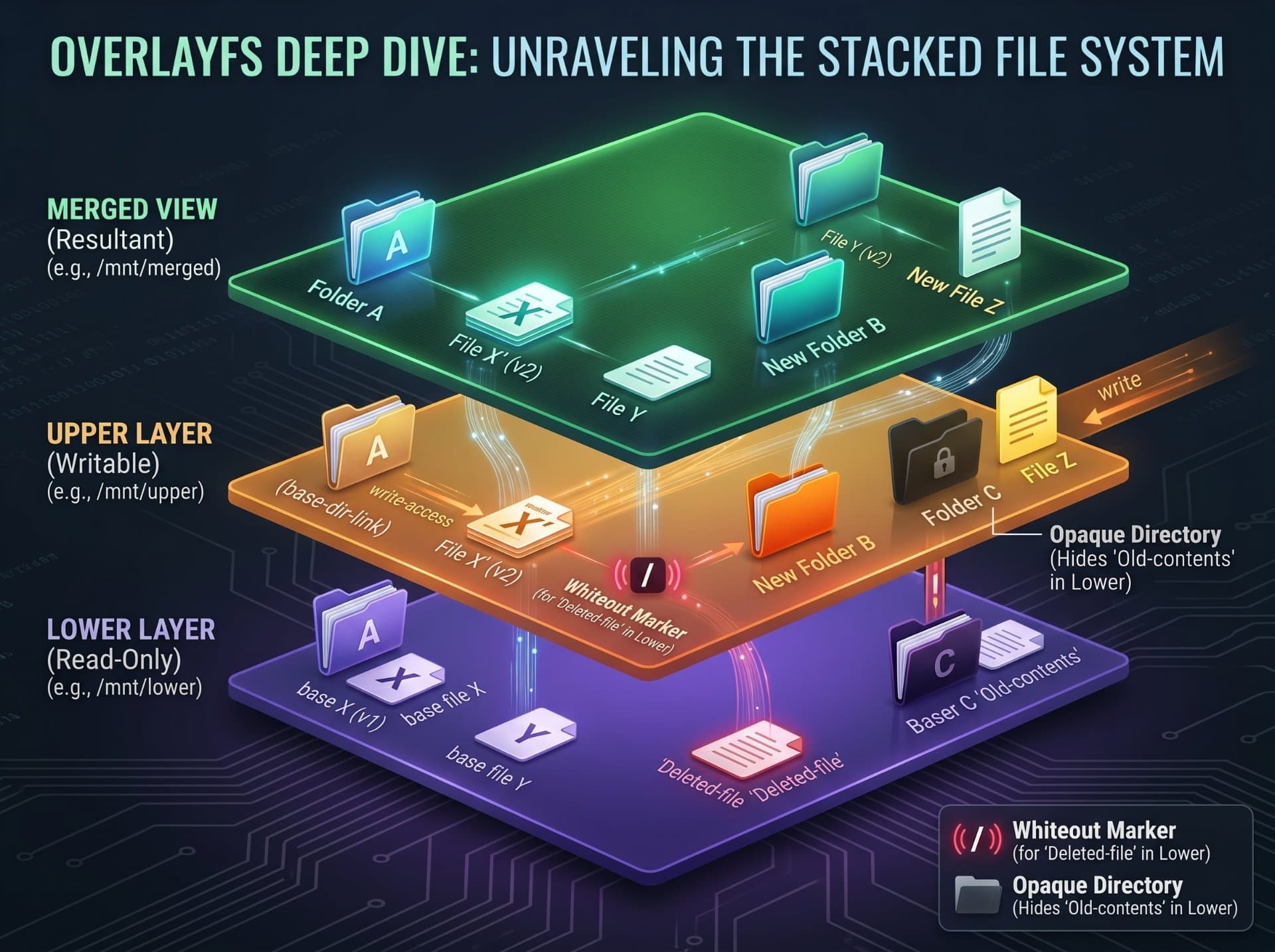
OverlayFS is a union filesystem a type of filesystem that presents a unified, merged view of multiple underlying directories. It has been part of the mainline Linux kernel since version 3.18 (2014) and is the default storage driver for Docker on all modern distributions.
The word "union" is key. OverlayFS does not copy files. It does not merge directories into a new location. It presents a single virtual directory tree that is assembled on-the-fly from multiple real directories stacked beneath it. From the perspective of any process looking at this tree, it appears completely normal, one coherent filesystem root.
The transparency stack analogy
Imagine stacking transparent acetate sheets on an overhead projector. Each sheet has some drawings on it. When you look at the projected image, you see all the drawings combined into one coherent picture. The sheet on top wins wherever there is a conflict if both sheet 3 and sheet 1 have a drawing at the same position, only sheet 3's drawing is visible. You can add a new blank sheet on top and draw on it without touching any of the originals. Remove the top sheet and the original drawing reappears perfectly intact. OverlayFS is this stack of sheets, applied to a filesystem.
The key insight: OverlayFS never copies data to create the unified view. It is a kernel-level indirection layer a smart index that says "when you ask for this file, look here first, then here, then here." The data stays in place. Only the namespace changes.
The four directory roles
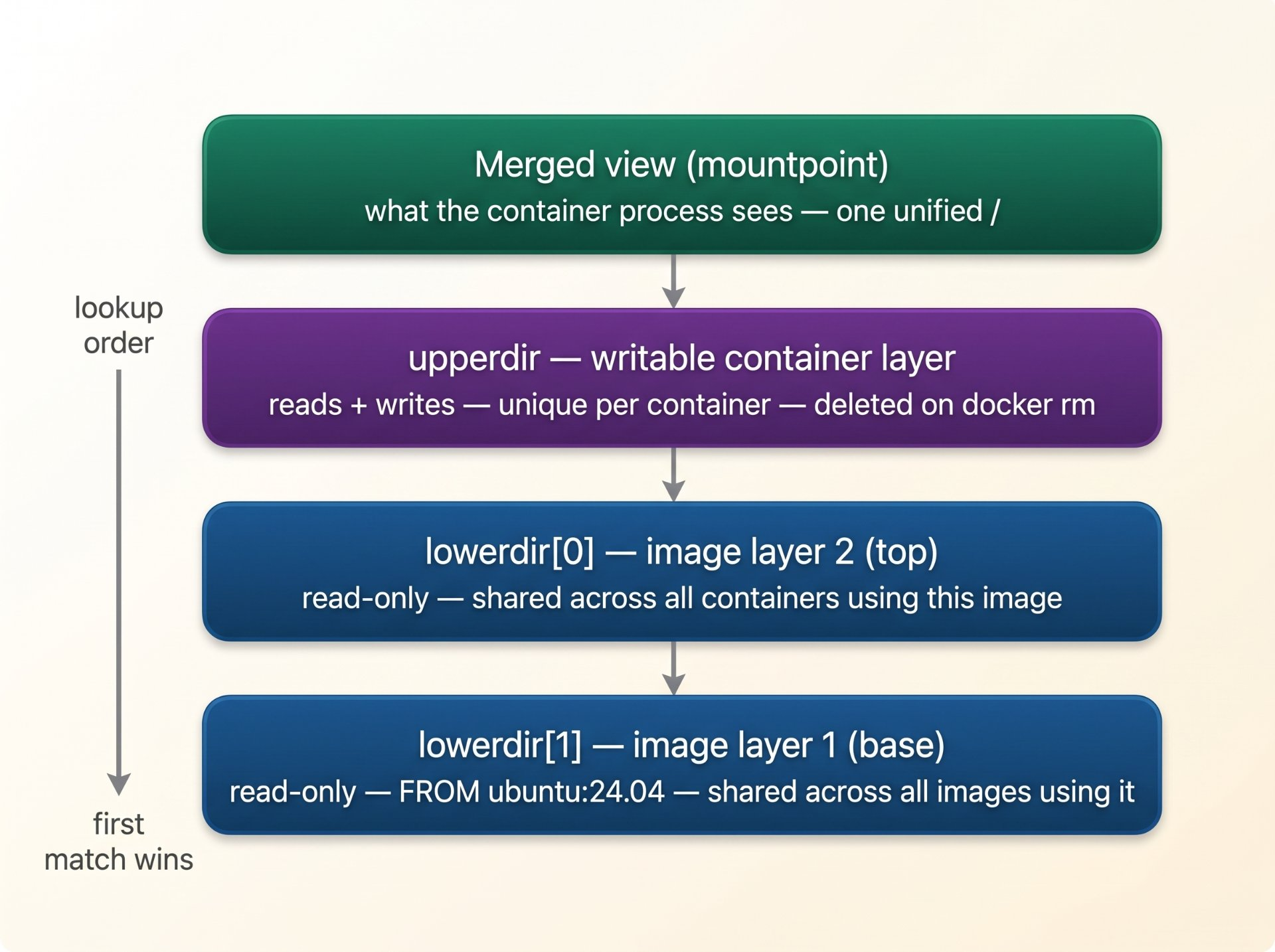
Every OverlayFS mount has exactly four components, each with a distinct role. Understanding these roles is the foundation of understanding every behaviour that follows.
# This is what Docker (via containerd) mounts for each container
mount -t overlay overlay \
  -o lowerdir=/layer2:/layer1 \    # read-only image layers (colon-separated, top first)
  -o upperdir=/container/diff \    # writable container layer (unique per container)
  -o workdir=/container/work \     # kernel scratch space (must be empty, same fs as upper)
  /merged                           # the mountpoint — what the container process sees

# Four roles:
# lowerdir: one or more read-only directories. Colon-separated, first = highest priority.
# upperdir: one writable directory. All writes land here.
# workdir:  kernel's private scratch space for atomic copy-up operations.
# merged:   the unified view. This is what gets mounted as the container's /.
The workdir is not optional
The workdir is required by the kernel for OverlayFS to perform atomic copy-up operations. It must be on the same filesystem as the upperdir (same disk partition). Docker creates it automatically alongside the upperdir. You never interact with it directly it is purely kernel-internal bookkeeping. But if it is missing, the mount fails.
How reads work — the lookup chain
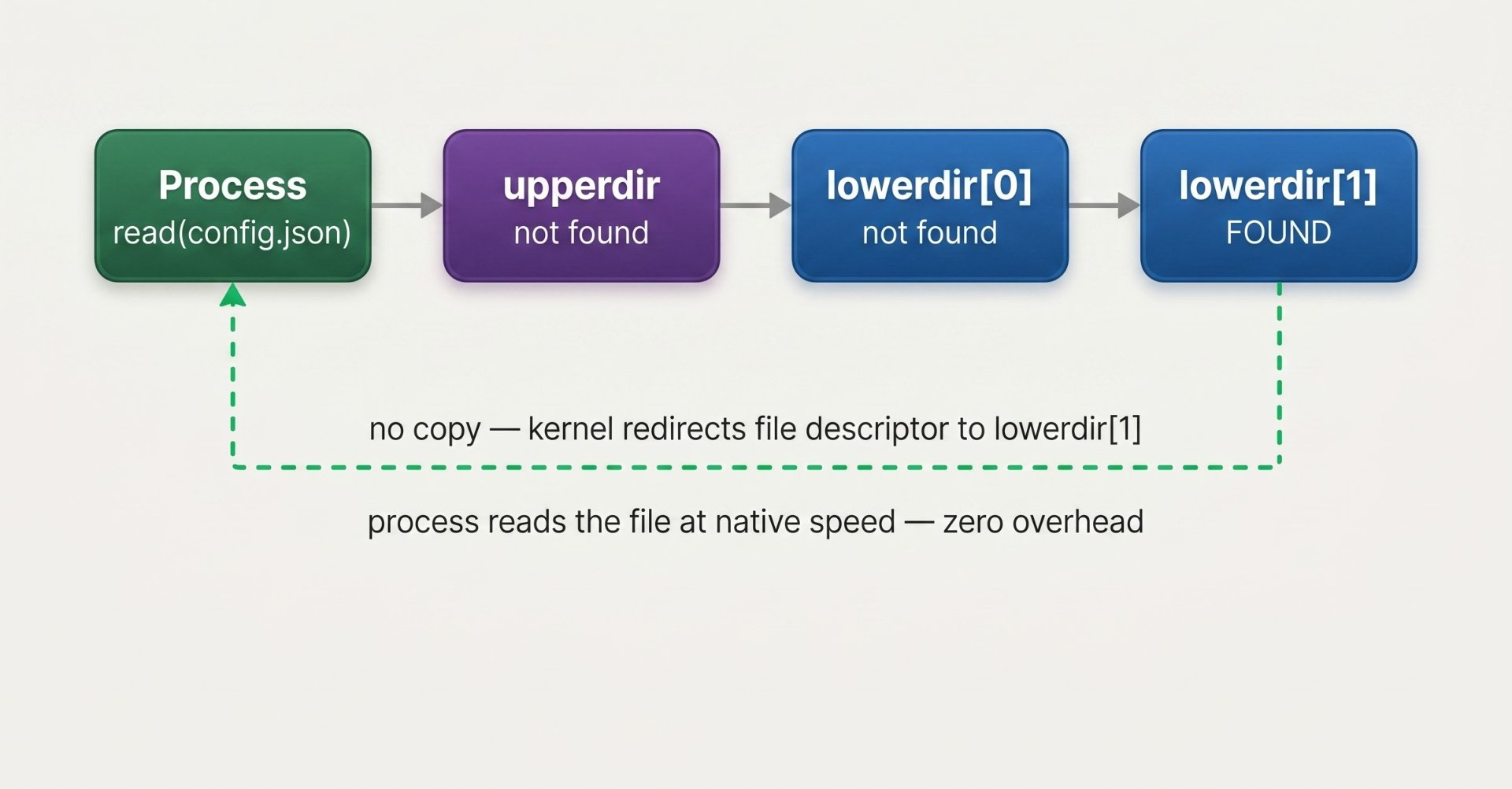
When a process reads a file, the kernel consults the OverlayFS layer stack in order: upperdir first, then each lowerdir from top to bottom. The first directory that contains the file wins. If no directory contains it, the read returns a "file not found" error exactly as if it were a normal filesystem.
This lookup is implemented as a kernel-level indirection, not a file copy. No data moves. The kernel simply redirects the file descriptor to the real location of the file in whichever layer contains it. For read-heavy workloads, this indirection is essentially free benchmarks show less than 1% overhead compared to reading from the underlying filesystem directly.
How writes work — copy-on-write (CoW)
This is where OverlayFS gets interesting and expensive. When a process writes to a file that exists only in a lowerdir (read-only), OverlayFS cannot write there. Instead it performs a copy-up: the entire file is first copied from the lowerdir into the upperdir, and then the write is applied to the upperdir copy. From the process's perspective, the write succeeded instantly. From the filesystem's perspective, a new copy now exists in the upperdir.
The library book analogy
A library has one reference copy of a book that cannot be checked out. You want to annotate a page. The librarian photocopies the entire book for you, places the copy in your personal folder, and you annotate your copy. The original reference copy is untouched. Next time you open "your" book, you see the annotated version. OverlayFS does exactly this: the original layer is the reference copy, the upperdir is your personal folder, and copy-up is the photocopying step unavoidable, necessary, and proportional to the file's size.
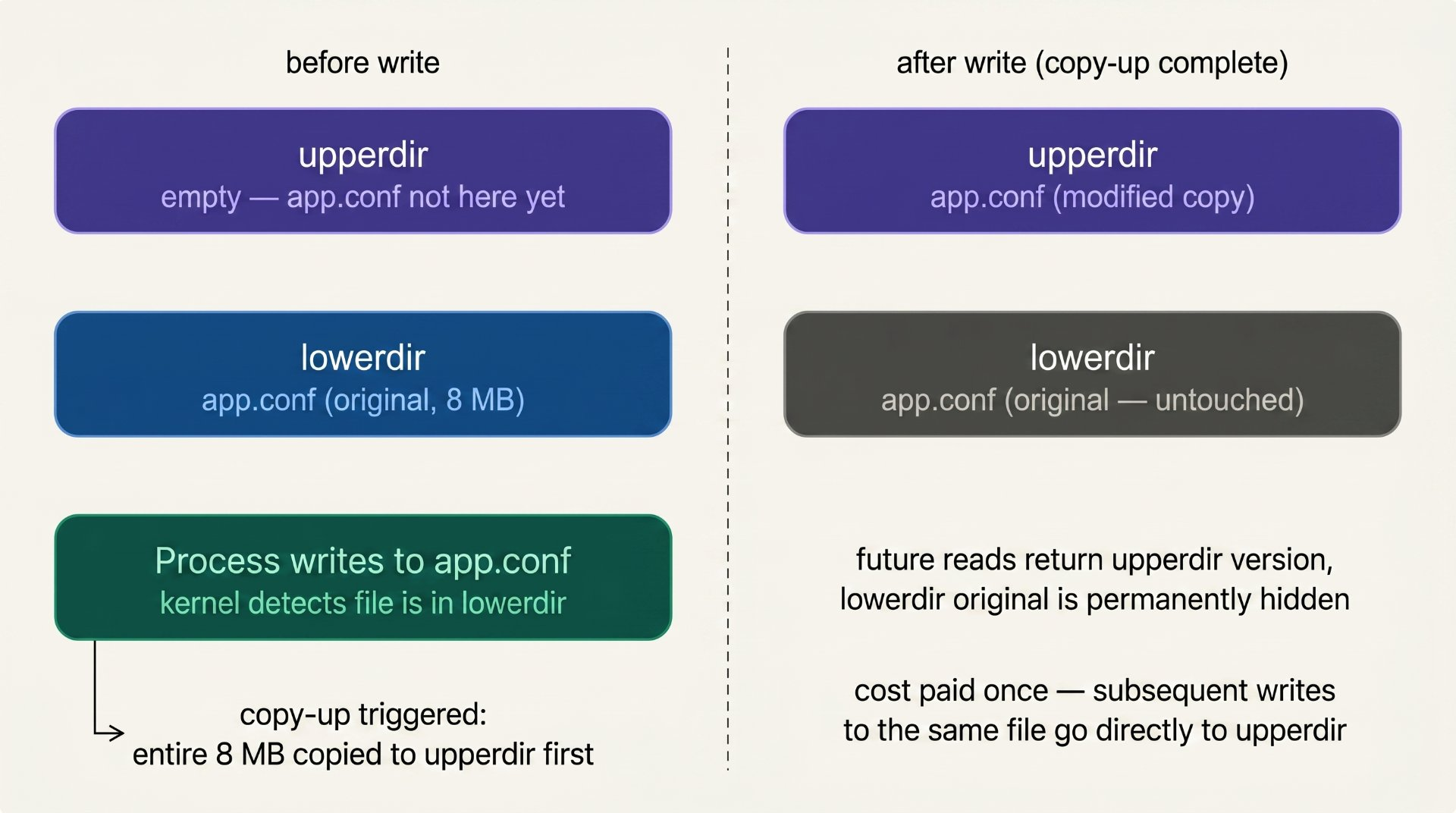
Copy-up is the defining cost of OverlayFS writes. The entire file is copied before the first write — even if you are only changing one byte. Subsequent writes to the same file are direct and fast.
The large-file copy-up trap
If a container process modifies a 500 MB database file that exists in the image layers, OverlayFS copies all 500 MB into the upperdir before writing a single byte. This is why databases inside containers without volumes are catastrophically slow on first write. Always use volumes for large, frequently written files volumes bypass OverlayFS entirely, going directly to the host filesystem at full speed.
How deletes work — whiteout files
Deleting a file from a read-only lowerdir presents an interesting problem: you cannot remove the original, but you need the delete to be visible. OverlayFS solves this with whiteout files special marker files created in the upperdir that signal "this file does not exist, even though a lowerdir contains it."
A whiteout file is a character device file with device number 0,0. When the kernel's OverlayFS lookup encounters a whiteout in the upperdir at a given path, it stops the lookup immediately and returns "file not found" even though the file exists in the layers below. The lowerdir file is invisible until the container is removed and the upperdir (with its whiteouts) is discarded.
# Inside a running container, delete a file
docker exec mycontainer rm /etc/motd

# On the host, look at what OverlayFS created in the upperdir
UPPER=$(docker inspect mycontainer \
  --format '{{.GraphDriver.Data.UpperDir}}')

ls -la $UPPER/etc/
c--------- 1 root root 0, 0 Jan 15 10:32 .wh.motd
# .wh. prefix = whiteout file
# c = character device  0, 0 = device number 0,0
# This tells OverlayFS: /etc/motd does not exist

# Whiteout for an entire directory: .wh..wh..opq (opaque whiteout)
# An opaque whiteout hides ALL content of a directory from lower layers
# Used when you replace an entire directory in a Dockerfile RUN commandDocker's layer storage on disk
Docker stores all OverlayFS data under /var/lib/docker/overlay2/. Each layer gets a content-addressed directory named by the SHA256 hash of its contents containing the actual files for that layer.
# The overlay2 directory contains one subdirectory per layer
ls /var/lib/docker/overlay2/
a3f8b2c9d1e4f7a0...  ← image layer (SHA256-named)
b4e9c3d0e2f5a8b1...  ← image layer
c5f0d4e1f3a6b9c2...  ← image layer
d6a1e5f2a4b7c0d3...  ← container writable layer (upperdir)
l/                  ← symlinks with shorter names (avoids mount arg limits)

# Inside each layer directory:
ls /var/lib/docker/overlay2/a3f8b2c.../
diff/    ← actual file content for this layer
link     ← short name symlink ID
lower    ← colon-separated list of layers below this one
work/    ← workdir (only in container/writable layers)

# Inside a container layer you also get:
merged/  ← the mounted union view (what the container sees as /)

# Inspect a running container's full mount parameters
docker inspect mycontainer --format '{{json .GraphDriver.Data}}' | python3 -m json.tool
{
  "LowerDir":  "/var/lib/docker/overlay2/b4e9.../diff:
               /var/lib/docker/overlay2/a3f8.../diff",
  "MergedDir": "/var/lib/docker/overlay2/d6a1.../merged",
  "UpperDir":  "/var/lib/docker/overlay2/d6a1.../diff",
  "WorkDir":   "/var/lib/docker/overlay2/d6a1.../work"
}Image layers vs container layers — the lifetime difference
Image layers are permanent, content-addressed, and shared. A layer created when building an image lives until explicitly deleted with docker image rm or docker system prune. Its content never changes it is immutable by design, and its directory name is the SHA256 hash of its content.
The container layer (upperdir) is ephemeral and per-container. It is created when docker run starts the container and deleted when docker rm removes it. Every write the container ever makes lives here and disappears with it unless a volume captures it first.
Why layer immutability enables sharing
Because image layers are immutable and content-addressed, Docker can safely share them between containers and images. Ten containers running the same image share the same read-only layers on disk only their writable upperdirs differ. A 1 GB image shared by 50 containers costs 1 GB on disk plus 50 tiny upperdirs, not 50 GB. This is the central economy of the Docker image model.
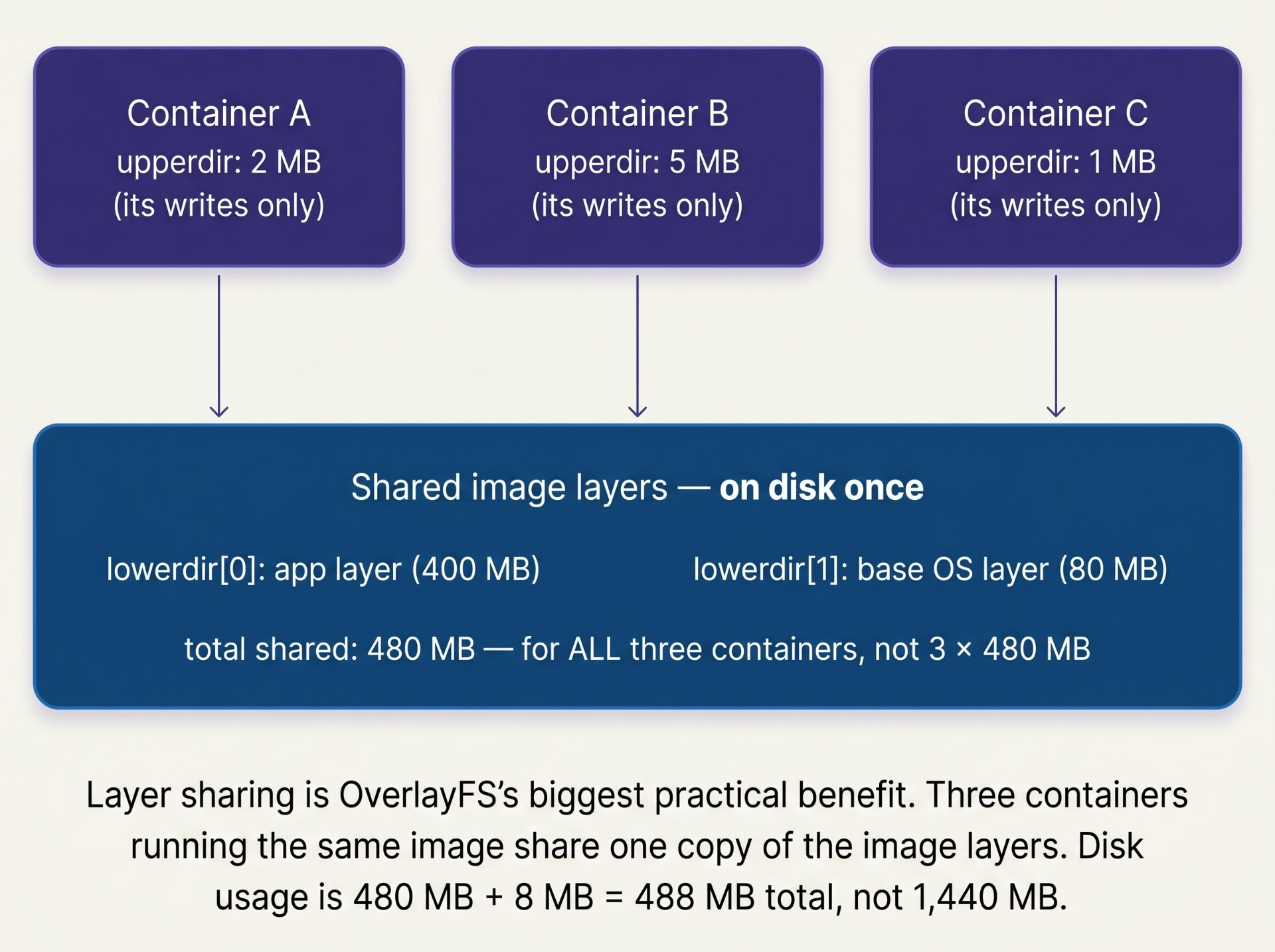
Performance implications — what is fast, what is slow
Understanding the performance model of OverlayFS determines which workloads belong in containers and which need volumes.
# Read performance — virtually no overhead vs native filesystem
docker run --rm ubuntu \
  bash -c "dd if=/dev/zero of=/dev/null bs=1M count=1000 2>&1"
1048576000 bytes transferred in 0.41s (2.5 GB/s)  ← memory speed, no disk

# First write to existing file — copy-up penalty proportional to file size
# Small file (1 KB): copy-up is imperceptible
# Large file (500 MB): copy-up takes ~0.5-2s before the write begins

# Write to new file — no copy-up, goes directly to upperdir
docker run --rm ubuntu \
  bash -c "dd if=/dev/zero of=/tmp/newfile bs=1M count=512 2>&1"
512 MB/s  ← full speed — new file, no copy-up needed

# Write to VOLUME — bypasses OverlayFS entirely
docker run --rm -v myvolume:/data ubuntu \
  bash -c "dd if=/dev/zero of=/data/testfile bs=1M count=512 oflag=direct 2>&1"
520 MB/s  ← native disk speed — no OverlayFS in the path

# The rule: volumes are always faster for write-heavy workloads
# because they skip the OverlayFS layer entirelyOverlayFS limits and gotchas
OverlayFS has a few non-obvious limitations that cause confusing failures if you do not know about them.
# Gotcha 1: max lowerdir depth — kernel limit of 128 layers (pre-5.2)
# Docker images with too many RUN instructions hit this limit
# Error: "Too many levels of symbolic links" on mount
# Fix: squash layers with --squash-all or combine RUN instructions

# Gotcha 2: hard links across layers don't work
# Files hard-linked in a lowerdir become independent copies after copy-up
# Impact: package managers that use hard links (rpm, dpkg) in containers
# can use more disk space than expected

# Gotcha 3: rename across directories fails in some cases
# A rename where source is in lowerdir and destination doesn't exist
# triggers copy-up of the source BEFORE the rename
# Large files can make rename seem very slow

# Gotcha 4: inodes are not stable across copy-up
# The inode number of a file changes after copy-up
# Applications that cache inode numbers will see stale entries

# Gotcha 5: d_type support required
docker info | grep "d_type"
Supports d_type: true   ← required for overlay2 to work correctly
# d_type = directory entry type information
# If false (some XFS configs), Docker falls back to vfs driver (very slow)
# Fix: reformat XFS with ftype=1: mkfs.xfs -n ftype=1 /dev/sdb
The 128-layer limit and why Dockerfile hygiene matters
Every RUN, COPY, and ADD instruction in a Dockerfile creates a new layer. On kernels before 5.2, OverlayFS has a hard limit of 128 lowerdirs. Docker images with deeply nested multi-stage builds or many sequential RUN commands can hit this limit. The fix is to combine RUN commands with && within a single instruction this is not just a best practice for image size, it is also a hard technical requirement when layer counts get high.
Author's Note
Chamath P.
DevOps Engineer
DevOps Engineer writing practical guides on Kubernetes, CI/CD, IaC, and SRE — based on real production experience.
This article was written with AI assistance. All technical claims and code examples have been personally verified before publishing.
Advertisements